
Overview
Floify’s Dynamic Apps is the latest enhancement to our cutting edge Apply Now experience. This feature enables teams to create three distinct application configurations—Purchase, Refinance, and Other—and present the appropriate version based on the borrower’s selected loan purpose.
By collecting the loan purpose up front, teams can streamline the borrower experience, disable non-compliant fields (like demographics for HELOCs), and remove the need for complex custom question logic. This improves compliance, enhances borrower clarity, and speeds up qualification—especially for non-QM and specialized loan scenarios.
To enable this feature during our initial roll out period, reach out to us at support@floify.com and we can help point you in the right direction and get you started.
This feature also includes our Custom Loan Purposes and Dynamic AI Autofill enhancements. You can read about those features here:
How to Set Up
Company Settings
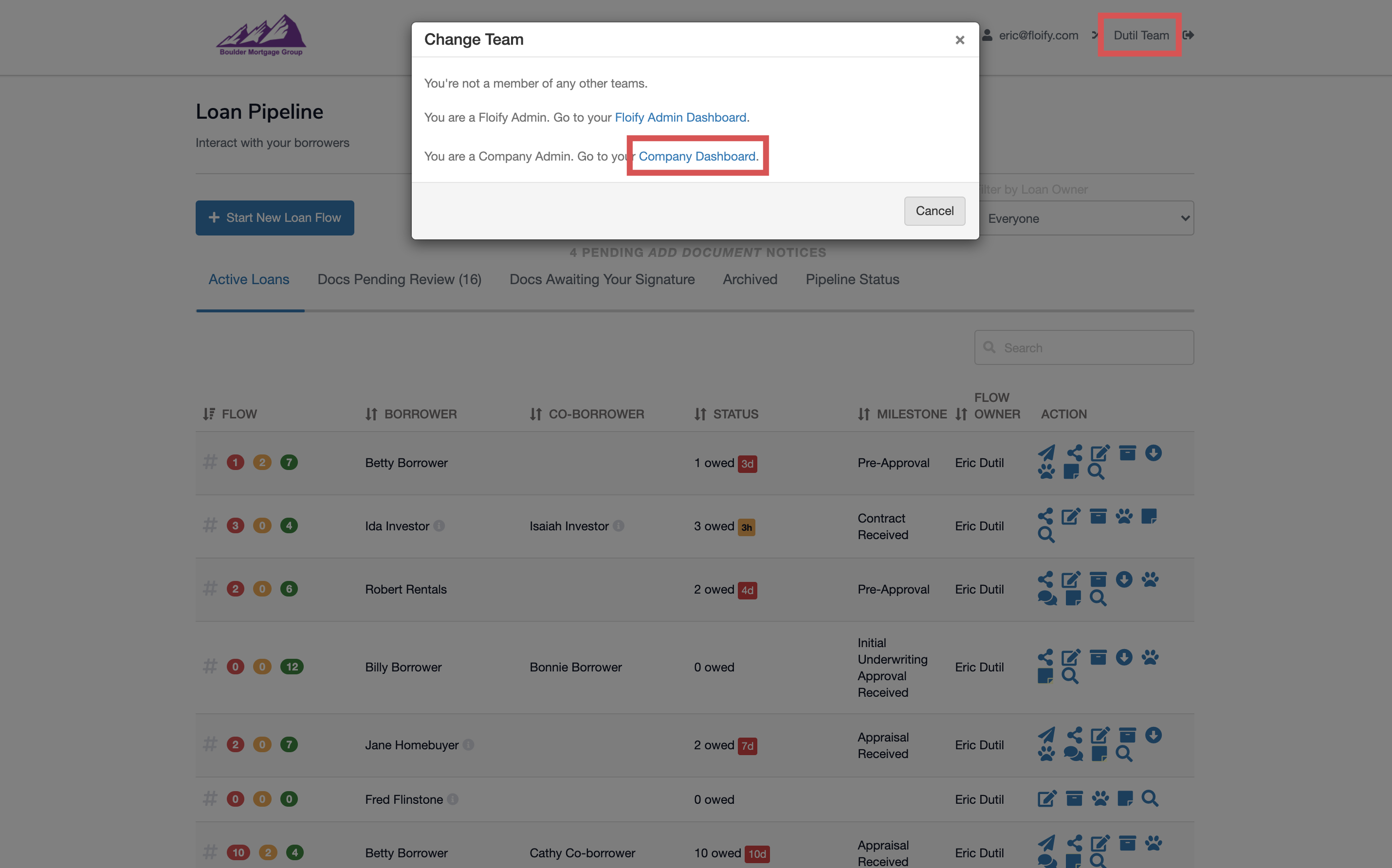
From the team pipeline, choose the team name in the upper right-hand corner and select the option to navigate to the Company Dashboard:
Navigate to Company Settings and then Apply Now Settings:
Scroll down to Application Types & Overrides.
You can select the application types you would like your teams to have enabled for from among Purchase, Refinance, and Other, and can choose if they are required for usage by teams by selecting the drop down menu associated with each type
For each application type, you can select Edit Application to adjust the configuration of the questions
The sections and questions will all be listed in a pop-up modal for adjustment
Each part can be fully enabled or disabled if necessary. You can also choose if you'd like to allow LO teams to add their own custom questions for each part:
There are three columns available to select for each question:
- Enabled for LO Teams - This will enable the question on the loan application for all LO teams. They can choose if they'd like to keep it or remove it.
- Require Question - This will require LO teams to use the question on the loan application.
- Require Answer - This will require borrowers to provide an answer to the question when completing the loan application.
At the end of each part of the application, there will be an option to add a company level custom question as well:
Make sure you select Save to confirm any changes you make:
Success! Any customizations made here will apply for all LO teams.
Team Settings
Once the company-level settings are set, you can configure each team as well. To do so, you can navigate back to the team settings via the team home page or, for admins, the company home page using the cog icon next to the team.
From the team Settings, Apply Now:
Navigate to the Application Types, where you will see all available types that can be adjusted
Note: The application types may be required at the company-level, which means that it cannot be turned off.
Next to the application type you would like to configure, press Edit application:
Scroll down to view a list of all the questions available for the loan application. The questions are sectioned into 'parts' which can be individually enabled or disabled:
Note: Company level restrictions may prevent you from making edits to all aspects of the application.
Select the questions you'd like to include in the Include in Application column, and choose which questions you'd like to make required for the borrower to complete in the Make Required column:
At the end of each part, additional custom questions can be added to the application. Here is more information regarding custom questions: Include Custom Questions in My Application:
Note: Adding a custom question to one application type will add it to all others. The configuration of the question can be set per application type, where it can be enabled and required as needed.
Make sure you select Save to confirm the changes:
Voila! Once you have done this for each application type, your application is now configured.
Borrowers will be prompted at the beginning of their loan to select their application type and will be able to answer all questions specific to that loan type.
Article is closed for comments.